
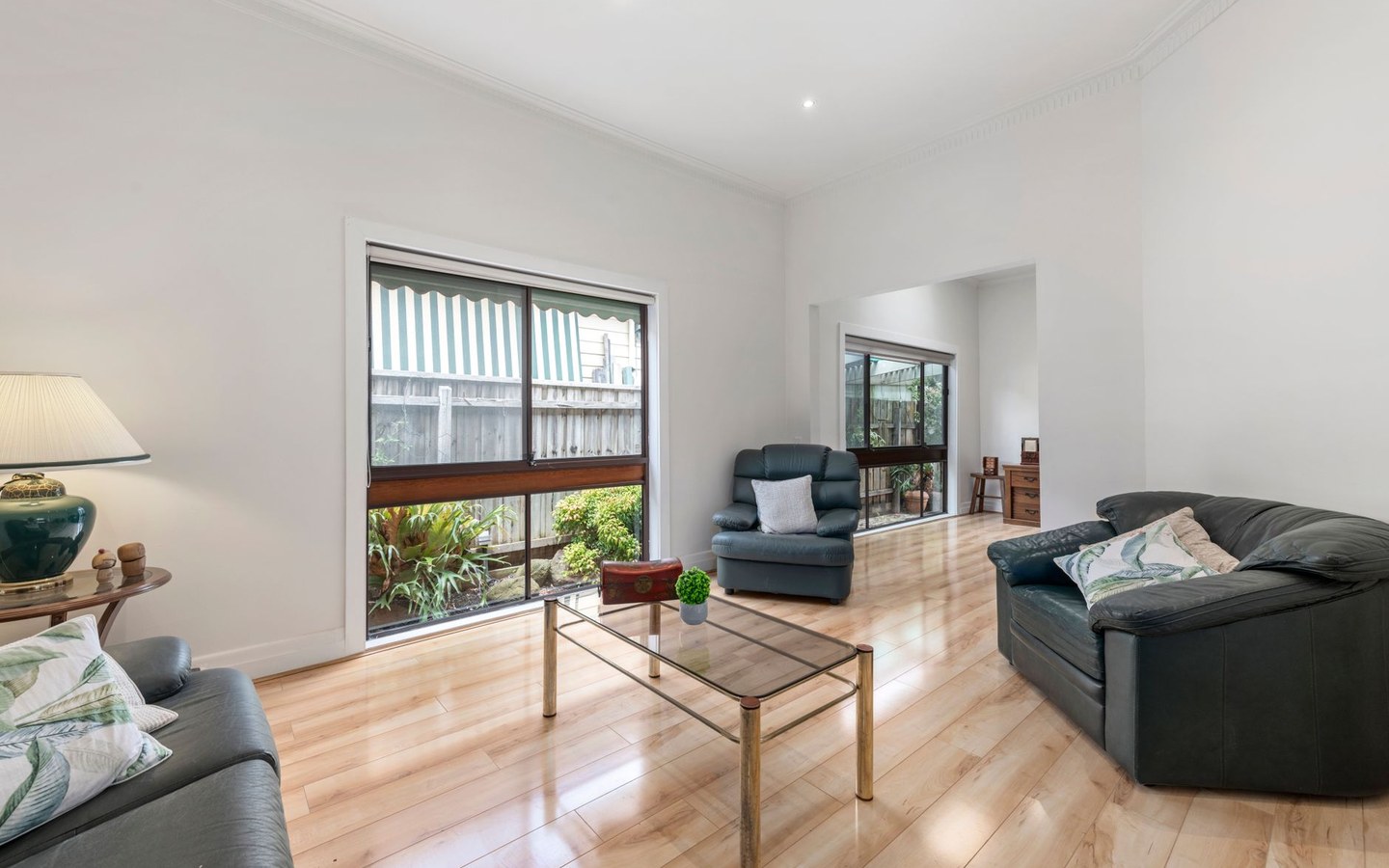
Rightmove and Zoopla dimension limits
Rightmove recommends a maximum dimension of 1600 pixels on the longest side. Agents who receive 4000px exports from photographers need those scaled down before upload.
Oversized files may be rejected or reprocessed by the portal, sometimes with unpredictable results. Preparing files to spec gives you control over sharpness and colour before the listing goes live.
EPC and floorplan slots in your CRM may accept different sizes from photography. Keep architectural PDFs and JPG room shots in separate folders so you do not accidentally resize a vector floorplan through a photo pipeline.
Ultra-wide panoramas stitched in Lightroom may exceed sensible portal dimensions even after a standard export. Check longest edge on stitched files before batch resize.
Drone stills may arrive at unusual aspect ratios. Longest edge at 1600px still applies; check the preview on aerial roof shots.
Batch resize, not one-by-one
Stampi resizes the entire folder to the same target. Choose the built-in Rightmove profile for 1600px JPG output, or web-optimised at 2048px for your own site.
Re-listing after a price reduction often reuses eighty percent of the photos. Pull the archived folder, resize if your logo or specs changed, and re-upload without re-editing from scratch.
Combine with logo branding and compression in one download. One ZIP ready for CRM upload beats three separate tool passes.
Price reductions that reuse photos still need resizing if your logo or brand guidelines changed since the original listing. Pull the archive, re-run Stampi, and re-upload without a full reshoot.
Exchange listings reusing vendor photos from three years ago may be smaller than modern camera exports. Upsizing old files cannot invent detail; consider fresh photography instead.
Social and marketing sizes too
Beyond portals, Stampi exports Instagram square at 1080 by 1080, Facebook link preview at 1200 by 630, and TikTok vertical at 1080 by 1920 from the same source files.
Useful when a sold listing also needs a social post the same afternoon. Brand once, export multiple sizes, and hand marketing a consistent pack.
Your own website often sits happily at 2048px web-optimised JPEG while portal files stay at 1600px. Export both profiles from one upload.
Just sold boards on Instagram need square crops that differ from Rightmove landscape hero shots. Export both from one branded source folder the afternoon completion posts go out.
Facebook link previews crop differently from Instagram squares. Export both rather than letting platforms crop your logo off awkwardly.
Resize without wrecking sharpness
Downscaling 4000px exports to 1600px generally preserves detail well for portal display. Upscaling small phone snaps cannot invent pixels that were never captured.
Panoramic living-dining knock-throughs need wide sources. If the photographer only delivered tight crops, resize cannot reconstruct missing context.
Check the preview on one exterior and one interior before processing the full batch. Roofline and kitchen worktop detail are good sharpness tests.
Estate chain portals sometimes display differently on desktop and mobile apps. 1600px longest edge remains the sensible preparation target for both.
Garden shots with fine foliage and fence detail are sharpness canaries. If those look soft in preview, ease compression before processing the batch.
Typical listing volumes
A standard sale listing carries fifteen to twenty five photos. Letting flats often run slightly fewer, but batch resize matters just as much when void periods cost money.
New-home developments may deliver fifty units with similar floor plans but distinct hero shots. Run each unit as its own batch so filenames map to CRM records.
Photographers delivering to multiple agents resize per client with that agency's logo and export profile locked in.
Luxury stock with pool, gym, and cinema rooms can exceed thirty images. Batch resize matters even more when file counts climb.
Commercial-to-residential conversions sometimes mix interior rooms with yard and loading bay externals. Same 1600px rule applies across varied subject matter.
Honest limits
Resize will not fix blur, exposure, or lens distortion. Those belong in the edit before export.
HEIC iPhone files need conversion to JPG as part of the pipeline. Stampi handles that in the same batch as resize and branding.
Video dimensions are a separate conversation. Still images for Rightmove and Zoopla are what batch resize targets.
Cropping to improve composition is not the same as resize. Fix framing in edit before export if the shot is unusable as delivered.
Virtual tour stills extracted from 360 software may need separate handling from standard DSLR exports. Keep those pipelines distinct from room photography resize batches.
Frequently asked questions
Should I resize before or after adding a logo?
Stampi handles both in one export. Logo placement is calculated on the final output dimensions, so you do not need to worry about order. Set your logo once, choose the Rightmove 1600px profile, and download portal-ready branded files.
What happens if I upload oversized files to Rightmove?
Rightmove may accept them but reprocess server-side. That can soften detail or shift colours unpredictably. Resizing to 1600px sRGB JPG before upload gives you control. Match published Rightmove image guidance and rejections become rare.
Can I resize to custom dimensions?
Stampi includes built-in profiles for Rightmove, web, and common social sizes. For most UK property workflows, 1600px longest edge is the critical portal target. Custom dimensions beyond those profiles may need a different tool if your CRM specifies unusual limits.
Is Stampi free to use?
Yes. Stampi is free with no subscription, no credit card, and no trial that expires. Open the app, upload your files, and download the results. We built it that way on purpose because photo prep is annoying enough without a paywall in the middle.
Do I need to create an account?
No. Stampi runs in your browser with no sign-up. Images are processed locally on your device. When you close the tab or download your ZIP, the session is gone. We do not store your files on a server.
How do I get started?
Go to stampi.cc, upload your photos (or click Try with samples to load demo files), add your logo, pick your export formats, and hit Prepare Media. A ZIP downloads in seconds. That is the whole workflow.